Recording a supplier invoice
Recording a supplier invoice creates the liability to your supplier (account 401xxx) and automatically generates the entry in the ACH (Purchases) journal. Two methods are available today: OCR import (photo or PDF of the invoice, drag-and-drop) and spreadsheet import (Excel/CSV).
Choosing the method
Section titled “Choosing the method”Photograph or drag-and-drop the invoice PDF — SynkriaOps automatically extracts the supplier, the excl./VAT/incl. amounts and the dates. You review and validate. This is the fastest method for a single invoice.
To record several invoices at once from an Excel or CSV file (for example a statement of invoices sent by your supplier or an export from your previous software).
Method 1 — OCR import (drag-and-drop)
Section titled “Method 1 — OCR import (drag-and-drop)”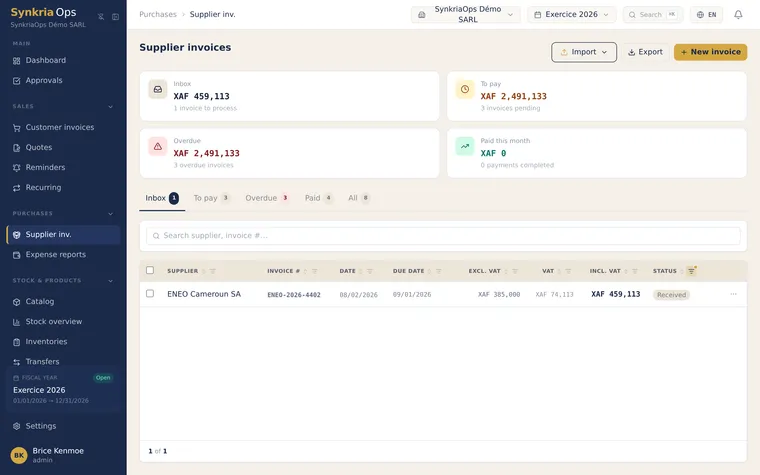
-
Go to Purchases → Supplier invoices and click Import via OCR.
-
Drag-and-drop the photo or PDF of the invoice into the import area.
-
SynkriaOps automatically extracts the information: supplier (name, tax ID), invoice date, external reference, amounts excl. VAT, VAT (19.25% Cameroon) and incl. VAT.
-
Review the extracted data — correct the suggested expense account (6xxx) and the detected supplier if needed. If the supplier does not exist yet, create it on the fly (its 401xxx sub-account is generated automatically).
-
Click Validate. The entry is generated in the ACH journal and the invoice moves to VALIDATED status.
For the full details (photo quality, data correction, duplicates), see Importing an invoice via OCR.
Method 2 — Excel/CSV spreadsheet import
Section titled “Method 2 — Excel/CSV spreadsheet import”-
Go to Purchases → Supplier invoices and click Import (spreadsheet import).
-
Select your Excel (.xlsx) or CSV file. Each row must contain at least: supplier, invoice date, external reference, amount excl. VAT, VAT rate.
-
SynkriaOps shows a preview: recognized rows, matched suppliers, total excl./VAT/incl. amounts, potential duplicates (same external reference already recorded).
-
Fix any flagged rows, then click Validate import. The invoices are created and their entries generated in the ACH journal.
The generated entry
Section titled “The generated entry”Whichever method you use, validation generates the same entry in the ACH journal. Example for a supplies invoice of 101,363 XAF incl. VAT:
| Account | Description | Debit | Credit |
|---|---|---|---|
| 606100 | Printer cartridges | 45,000 XAF | |
| 606200 | A4 paper | 25,000 XAF | |
| 606300 | Miscellaneous supplies | 15,000 XAF | |
| 4452 | Deductible VAT | 16,363 XAF | |
| 401001 | Supplier Papeterie Express | 101,363 XAF |
The internal number is auto-generated (e.g. ACH-2026-000XXX).
SYSCOHADA reference accounts — purchases
Section titled “SYSCOHADA reference accounts — purchases”| Family | Accounts | Usage |
|---|---|---|
| Purchases | 601xxx – 609xxx | Goods, materials, packaging |
| External services | 621xxx – 629xxx | Subcontracting, rent, transport, advertising |
| Other services | 631xxx – 659xxx | Miscellaneous charges, exceptional charges |
| Suppliers | 401xxx | Liability to suppliers |
| Deductible VAT | 4452 | Recoverable VAT on purchases |
Recording the payment
Section titled “Recording the payment”When you pay the invoice:
-
Go to Purchases → Supplier invoices → open the invoice.
-
Click Record payment.
-
Select the payment account (bank or cash), enter the date and amount paid.
-
Confirm — the payment entry is created and the 401xxx matching is done.
Common errors
Section titled “Common errors”| Error | Cause | Solution |
|---|---|---|
| ”Supplier not recognized” | File/OCR name differs from the supplier card | Match manually or create the supplier |
| ”Expense account not selected” | Line without SYSCOHADA account | Choose a 6xxx account for each line |
| ”Duplicate external reference” | Same invoice number already recorded | Check if the invoice was already imported |
| ”Inconsistent VAT amount” | Incorrect rate or calculation in the file | Recheck the excl. VAT amount and the VAT rate |
Further reading
Section titled “Further reading”- Importing an invoice via OCR — automatically extract data from a PDF invoice
- Creating a supplier — add a contact with a 401xxx sub-account
- Matching accounts receivable/payable — reconcile payments and supplier invoices