Switch active client file
By the end of this guide, you will know how to move from one client file to another, return to your own company and work on two files at the same time.
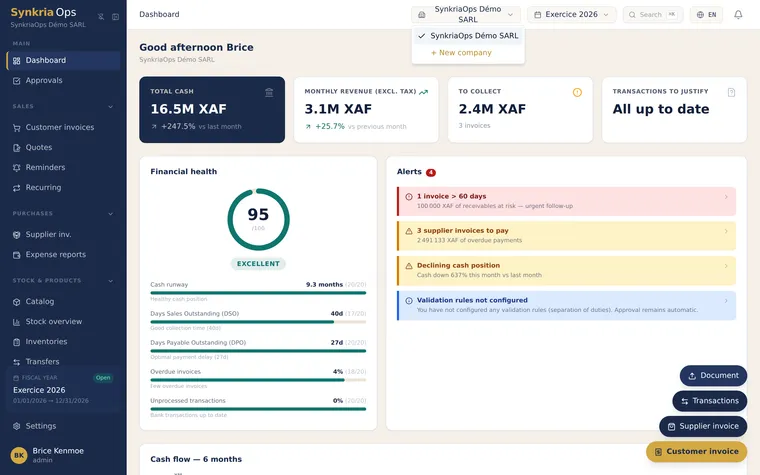
From the company switcher
Section titled “From the company switcher”-
Click the name of the open company, at the top left of the top bar.
-
In the list, click the file you want. Type a few letters in the search if the list is long.
-
The application reloads with the chosen file’s data.
Hovering over the open company’s name shows its identity card (tax ID, RCCM, tax regime, engagement, manager).
From the firm workspace
Section titled “From the firm workspace”In Portfolio → Dossiers, click Open the dossier on the client’s line. To return to your own company’s books, click My client workspace.
Working on two files at once
Section titled “Working on two files at once”A browser tab follows the file chosen last. To keep two files open side by side, click Detach this tab in the top bar: that tab keeps its file, and you can open another one in a second tab. Reattach this tab makes it follow the shared file again.
Common problems
Section titled “Common problems”| Problem | Likely cause | Solution |
|---|---|---|
| The expected file does not appear in the list | File archived, unlinked or access withdrawn | Check the “Archived” filter in Dossiers or contact the firm administrator |
| ”Couldn’t open this dossier” | Access withdrawn or file unavailable | Reload the page; if the message persists, contact the administrator |