SynkriaOps interface tour
By the end of this tour, you will know how to switch company, find a module in the menu, read the dashboard indicators, search for anything and set your preferences. The web application is designed for a computer; on a phone, use the mobile app.
The three areas of the screen
Section titled “The three areas of the screen”| Area | Location | Content |
|---|---|---|
| Top bar | At the top | Company switcher, breadcrumb, search, notifications, your avatar |
| Left menu | On the left | The modules, grouped by section |
| Main area | In the centre | The open page: dashboard, list, form |
Switching company
Section titled “Switching company”At the top left, the company switcher shows the name of the open company. Click it to open the list of companies you can access and choose another one; + New company creates one (see Create your company file).
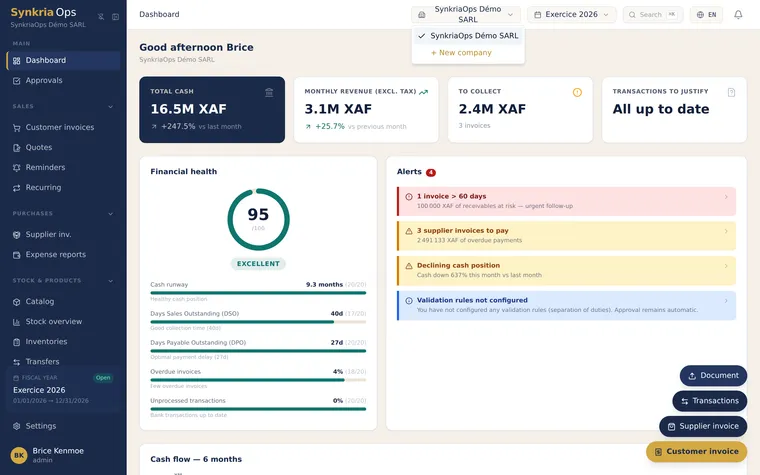
Data is strictly separated: you never see another company’s entries. To work on two companies at the same time, click Detach this tab: the tab keeps its company, and you can open another one in a second tab.
The left menu
Section titled “The left menu”| Section | Modules |
|---|---|
| Main | Dashboard, Approvals, Firm requests |
| Sales | Customers, Customer invoices, Quotes, Pro formas, Reminders, Recurring |
| Purchases | Suppliers, Supplier invoices, Expense reports |
| Operations | Catalog, Stock overview, Inventories, Transfers, Warehouses |
| Cash & banking | Transactions, To categorize, Forecast |
| Accounting | Accounting docs, Journals, General ledger, Trial balance, Balance sheet, Income statement, Third parties |
| Financial statements | SYSCOHADA financial statements and DSF package |
| Tax | VAT Dashboard, Declarations and Prorata (if the company is VAT liable) |
| Assets | Fixed assets |
| Analytics | Overview, reports, budget and analytical reference data |
| Documents | GED (document management), Exports, Imports |
| Settings | Company, team, bank accounts, fiscal years, chart of accounts, subscription… |
You only see the modules open to your role and your plan. The menu shows as icons on a 13-inch laptop and expanded beyond; you can fix this choice in your preferences.
Reading the dashboard
Section titled “Reading the dashboard”The dashboard is the home page of each company.
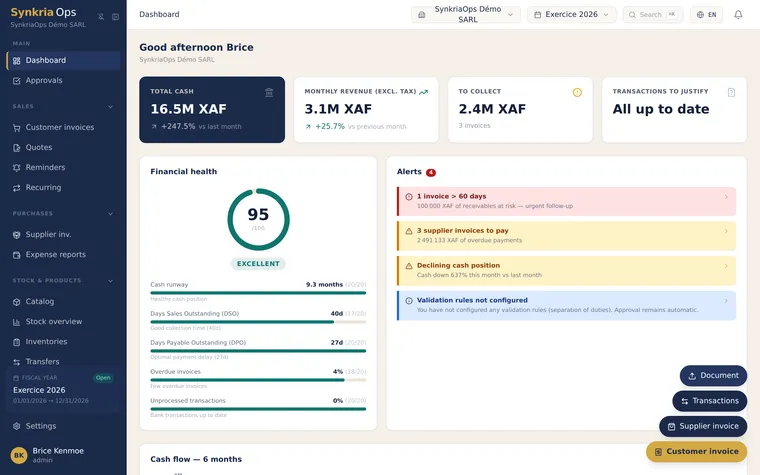
| Indicator | What it shows |
|---|---|
| Total cash | The balance of your treasury accounts, compared with last month |
| Monthly revenue (excl. tax) | The month’s revenue excluding tax, compared with the previous month |
| To collect | The amount and number of customer invoices still due |
| Transactions to justify | Bank transactions waiting for a document or an allocation |
Each indicator is clickable and opens the matching list.
Searching with Ctrl + K
Section titled “Searching with Ctrl + K”Click Search in the top bar, or press Ctrl + K (⌘ + K on a Mac). Type at least two characters: the search finds an invoice, a third party, an entry, a chart account, a journal or a feature of the application.
In the general ledger, G then 1, 2 or 3 changes the layout (see Consulting the general ledger).
Setting your preferences
Section titled “Setting your preferences”Click your avatar at the top right, then Preferences. Settings apply as soon as you click and follow you on every computer.
| Block | Settings |
|---|---|
| Opening | The company opened after sign-in, the fiscal year shown, the opening page |
| Display | The size of text and tables, the left menu (expanded, collapsed or depending on width) |
| Language and formats | The interface language (French or English), how amounts and dates are written |
| Lists | The number of rows shown when a list opens |
The avatar menu also gives access to My profile, Security and access (see Managing active sessions) and Display size, which enlarges the app on large screens.