Banking & reconciliation from mobile
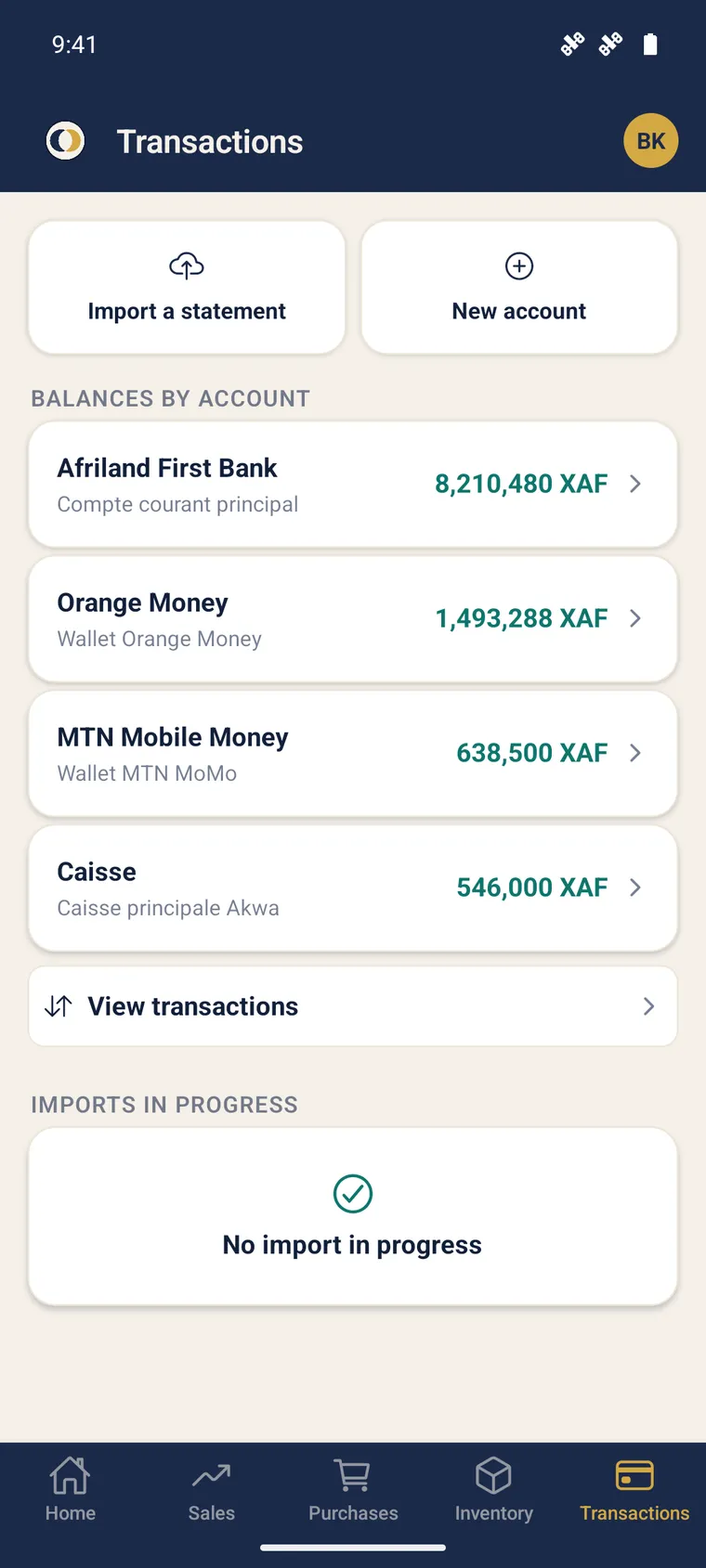
The mobile app’s Banking tab is not read-only: there you assign your transactions and reconcile your pieces, directly from the phone. The banking cycle is handled in the field.
Check balances
Section titled “Check balances”The Banking tab shows the real balance of each account, computed from the general ledger — the same value as on the web. You immediately see where your cash stands.
Create a manual transaction
Section titled “Create a manual transaction”-
Banking tab → New transaction.
-
Choose the direction (inflow / outflow): the amount is signed automatically.
-
Enter the amount, the date and the account (you can create an account on the fly).
-
Validate. The transaction is born “to be processed” and enters the assignment circuit.
Assign a transaction (2 taps)
Section titled “Assign a transaction (2 taps)”Assigning means specifying the accounting counterpart of a transaction to generate its entry.
-
In the transaction list, open a transaction to be processed.
-
Tap Assign. Frequent accounts are offered instantly; otherwise, search the chart of accounts or a contact.
-
Need a contact that doesn’t exist? Create it on the fly (customer or supplier, suggested by the direction) without leaving the screen.
-
Validate: the server generates the balanced entry (debit = credit).
Reconcile a piece to a transaction
Section titled “Reconcile a piece to a transaction”To link a payment to an invoice or a piece:
-
In a transaction’s detail, tap Link a piece.
-
The app shows the planned allocation (“the minimum of the remaining amounts will be allocated”).
-
Validate: the server records the settlement and the matching; the amount is computed server-side.
Partial allocation is handled: the screen stays open until the transaction is settled, and the remaining to match is recomputed after each allocation. You can also start from an invoice and link a transaction the other way round.
Import a bank statement
Section titled “Import a bank statement”From the Banking tab → Import a statement, two sources:
- Scan a paper statement — offline, via capture (“bank statement” type).
- Import a file — online, formats PDF, CSV, XLSX, OFX, MT940. Choose the account, then follow the wizard (mapping or preview depending on the format).
Further reading
Section titled “Further reading”- Field capture — scan a paper statement
- Invoices & reminders — link a collection to an invoice
- Offline mode — why assignment requires the network