Understanding roles and permissions
By the end of this article, you will know how to pick the right role for each collaborator, fine-tune their permissions when needed and change a role already assigned.
In SynkriaOps, every user has a role that precisely defines what they can see and do within the tenant. This system is built on the principle of least privilege: each collaborator only accesses the features necessary for their work, and nothing more. Understanding roles before inviting your team will prevent surprises — such as giving someone access to security settings when they don’t need them.
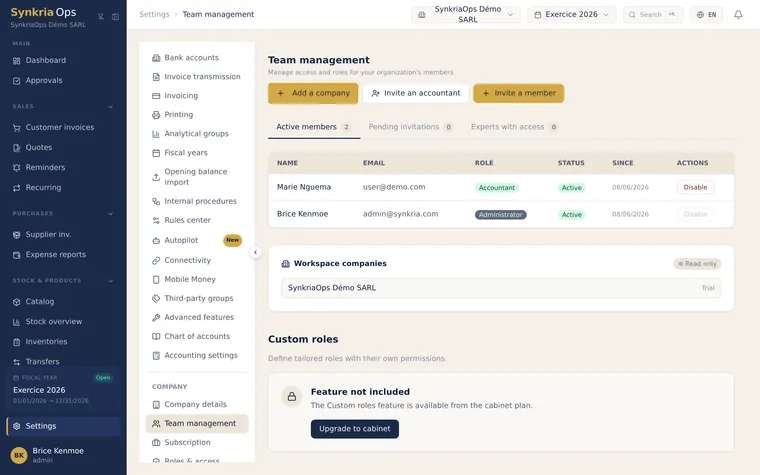
Choose among the five roles
Section titled “Choose among the five roles”SynkriaOps offers five roles, in decreasing order of scope: ADMIN, CFO, ACCOUNTANT (comptable), AUDITOR (auditeur) and CLIENT.
ADMIN — Administrator, full access
Section titled “ADMIN — Administrator, full access”The ADMIN has access to the entire application, without restriction. It is the only role able to:
- Manage users (invite, edit, deactivate)
- Modify VAT settings, accounting journals and the chart of accounts
- Create and close a fiscal year (shared with the CFO), and reopen a closed year (ADMIN only, with a reason ≥ 10 characters)
- Configure the tenant’s sign-in and security settings
Typical use cases: managing director or partner, administrative and financial officer.
CFO — Chief Financial Officer
Section titled “CFO — Chief Financial Officer”The CFO is a top-level financial steering role, sitting between the ADMIN and the ACCOUNTANT. In addition to all day-to-day accounting operations, it can:
- Create and close a fiscal year (like the ADMIN)
- Deactivate a product or a counterparty
- Resolve (override) an approval request in the validation engine
It cannot reopen a closed year (reserved to the ADMIN) nor manage users.
Typical use cases: chief financial officer, management controller, chief accountant in charge of closings.
ACCOUNTANT (comptable) — data entry and exports
Section titled “ACCOUNTANT (comptable) — data entry and exports”The ACCOUNTANT can perform all day-to-day bookkeeping operations, without accessing sensitive settings.
They can:
- Create, edit (before posting) and post accounting vouchers
- Perform reconciliation (lettrage) of counterparty accounts
- View and export the general ledger, the trial balance, and all financial statements
- Export the FEC for tax controls
- Manage customers and suppliers, quotes and customer invoices
- Import Mobile Money statements and reconcile bank transactions
They cannot:
- Modify VAT settings, journals or the chart of accounts
- Invite or deactivate users
- Create, close or reopen a fiscal year
Typical use cases: staff accountant, data-entry manager.
AUDITOR (auditeur) — read-only
Section titled “AUDITOR (auditeur) — read-only”The AUDITOR sees everything but modifies nothing. They can browse all financial statements, the general ledger and the trial balance without any risk of touching data.
They can:
- View the dashboard and all its KPIs
- Browse the general ledger, trial balance and journals in read-only mode
- View quotes, invoices and financial statements (financial statements are available in simplified mode; the detailed mode is closed to this role)
- Download PDFs of already-generated documents
They cannot:
- Create, edit or post any accounting voucher
- Export the FEC or regulatory exports
- Access settings
Typical use cases: statutory auditor during review, minority partner with oversight rights, investor.
CLIENT — client portal reader
Section titled “CLIENT — client portal reader”The CLIENT is a restricted read-only role designed for the client portal. It grants limited read access to the documents and information that concern them (invoices, quotes, balances), without visibility over the whole accounting.
Typical use cases: end customer given access to their own documents.
Fine-tune permissions with access groups and custom capabilities
Section titled “Fine-tune permissions with access groups and custom capabilities”Beyond these five base roles, SynkriaOps lets you fine-tune permissions at invitation time:
- Access groups (role templates): predefined profiles bundling a coherent set of capabilities.
- Custom capabilities: when inviting a user, you can compose a tailored role by ticking exactly the allowed capabilities, within the limits of your plan.
This granularity lets you match permissions to your organization without being limited to the five standard profiles.
Compare permissions role by role
Section titled “Compare permissions role by role”| Action | ADMIN | CFO | ACCOUNTANT | AUDITOR | CLIENT |
|---|---|---|---|---|---|
| Accounting | |||||
| Create/edit accounting vouchers | ✓ | ✓ | ✓ | — | — |
| Post accounting vouchers | ✓ | ✓ | ✓ | — | — |
| Reverse a posted voucher | ✓ | ✓ | ✓ | — | — |
| Perform reconciliation (lettrage) | ✓ | ✓ | ✓ | — | — |
| View general ledger / trial balance | ✓ | ✓ | ✓ | ✓ | — |
| Browse the chart of accounts | ✓ | ✓ | ✓ | ✓ | — |
| Modify the chart of accounts | ✓ | — | — | — | — |
| Sales | |||||
| Create quotes and customer invoices | ✓ | ✓ | ✓ | — | — |
| View quotes and invoices | ✓ | ✓ | ✓ | ✓ | ✓ |
| Send payment reminders | ✓ | ✓ | ✓ | — | — |
| Purchases & expenses | |||||
| Record a supplier invoice | ✓ | ✓ | ✓ | — | — |
| Enter an expense report | ✓ | ✓ | ✓ | — | — |
| Banking & treasury | |||||
| Import Mobile Money statements | ✓ | ✓ | ✓ | — | — |
| Reconcile bank transactions | ✓ | ✓ | ✓ | — | — |
| View cash flow forecast | ✓ | ✓ | ✓ | ✓ | — |
| Counterparties & products | |||||
| Manage customers and suppliers | ✓ | ✓ | ✓ | — | — |
| View counterparties | ✓ | ✓ | ✓ | ✓ | — |
| Exports & reports | |||||
| Export the FEC | ✓ | ✓ | ✓ | — | — |
| Export financial statements to Excel | ✓ | ✓ | ✓ | — | — |
| View financial statements | ✓ | ✓ | ✓ | ✓ | ✓ |
| Settings | |||||
| Invite / manage users | ✓ | — | — | — | — |
| Modify VAT rates | ✓ | — | — | — | — |
| Configure accounting journals | ✓ | — | — | — | — |
| Create a fiscal year | ✓ | ✓ | — | — | — |
| Close a fiscal year | ✓ | ✓ | — | — | — |
| Reopen a closed fiscal year | ✓ | — | — | — | — |
| Configure tenant security | ✓ | — | — | — | — |
Frequently asked questions about roles
Section titled “Frequently asked questions about roles”Can my accountant close a fiscal year?
No. Closing a fiscal year is reserved to the ADMIN and CFO roles. It triggers the profit-and-loss calculation, the entry on the class 13 net income account (1301 profit / 1309 loss) and the permanent locking of entries. It is an irreversible operation that requires explicit confirmation. See Close a fiscal year.
Can my accountant change the VAT rate? No. VAT settings are reserved to the ADMIN. An incorrect VAT rate can affect every invoice generated after the change — the restriction is therefore intentional.
Can an AUDITOR download the FEC? No. The FEC export is reserved to the ADMIN, CFO and ACCOUNTANT roles, because it contains all accounting data in a structured format intended for the tax authority. An AUDITOR user can view the financial statements in read-only mode in the interface.
Can I create a custom role? Yes. In addition to the five standard roles, you can compose a tailored role at invitation time using access groups and custom capabilities (see above).
Link an external accountant (firm mode)
Section titled “Link an external accountant (firm mode)”An accountant’s access is not a tenant role: it is not assigned like ADMIN or ACCOUNTANT. The accountant accesses your tenant through their firm, via the firm’s client-file mechanism, not through Settings → Team.
Once linked, the accountant has rights close to those of an ACCOUNTANT on day-to-day operations, but with additional restrictions on certain sensitive actions (deleting counterparties, retroactively editing labels). These restrictions belong to the firm, not to the client company, and you can revoke this access at any time.
To learn more, see Accountant permissions in firm mode.
Changing an existing role
Section titled “Changing an existing role”Assigned the wrong role to a collaborator? No worries — the change is instant:
-
Go to Settings → Team.
-
Click on the relevant user’s name.
-
In the side panel, click “Edit role”.
-
Select the new role.
-
Click “Save”.
The change takes effect immediately — the user does not need to sign out.