Understanding the SYSCOHADA chart of accounts
By the end of this guide, you will know how to read the 9 classes of the SYSCOHADA revised 2019 chart of accounts (745+ predefined accounts, bilingual French/English), find any account in SynkriaOps, and create your own sub-accounts. Each account is identified by a number whose first digit determines its class.
The 9 classes of the SYSCOHADA chart
Section titled “The 9 classes of the SYSCOHADA chart”| Class | Title | Nature | Examples |
|---|---|---|---|
| 1 | Permanent capital resources | Balance sheet — Equity & liabilities | 101000 Share capital, 130000 Net income for the year, 161000 Bank loan |
| 2 | Non-current assets | Balance sheet — Assets | 221000 Land, 241000 Equipment & tools, 281000 Depreciation |
| 3 | Inventories | Balance sheet — Assets | 310000 Goods, 321000 Raw materials |
| 4 | Counterparty accounts | Balance sheet — Assets/Liabilities | 411xxx Customers, 401xxx Suppliers, 422xxx Employees |
| 5 | Cash & treasury | Balance sheet — Assets | 521001 Main bank, 571001 Cash register, 581000 Internal transfers |
| 6 | Ordinary operating expenses | Income statement — Expenses | 601000 Goods purchases, 661000 Payroll costs |
| 7 | Ordinary operating income | Income statement — Revenue | 701000 Sales, 706000 Services rendered, 771000 Financial income |
| 8 | Extraordinary items | Income statement — Non-recurring | 831000 Asset disposal proceeds, 871000 Grants received |
| 9 | Analytical accounts | Internal management | Allocation by department, project, cost centre |
Navigating the chart of accounts
Section titled “Navigating the chart of accounts”-
Open Settings → Chart of accounts from the main menu.
-
The chart is displayed as collapsible classes. Click a class to reveal level-2 root accounts and their sub-accounts.
-
Use the search bar to filter:
- By number: type
521to display all bank accounts - By label: type
VATto quickly locate tax accounts
- By number: type
-
Click any account to view its cumulative balance, attached entries, and management options.
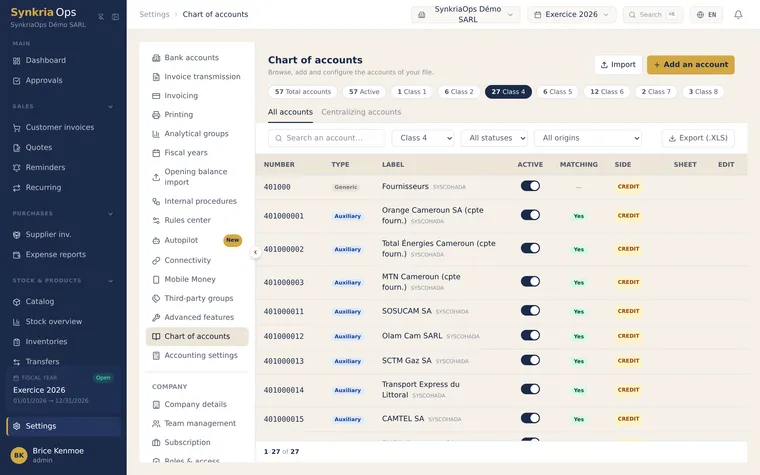
Accounts pre-configured by SynkriaOps
Section titled “Accounts pre-configured by SynkriaOps”Certain accounts are used automatically by SynkriaOps when creating counterparties or recording VAT:
| Account | Label | Automatic usage |
|---|---|---|
411xxx | Customers | Created when a customer counterparty is added (e.g. 411001 First customer) |
401xxx | Suppliers | Created when a supplier counterparty is added (e.g. 401001 First supplier) |
521001 | Main bank | Default bank account |
571001 | Cash register | Main cash account |
4431 | Output VAT on sales (collected) 19.25 % | Credited automatically on taxable sales |
4452 | Recoverable VAT on purchases (deductible) 19.25 % | Debited automatically on taxable purchases |
444 | State — VAT payable or VAT credit | Net VAT to remit or carry forward after the return |
13 | Net income for the year | Used during fiscal year-end close (1301 profit / 1309 loss) |
Creating a custom sub-account
Section titled “Creating a custom sub-account”You can add your own accounts to refine your analysis (e.g. distinguish between multiple cash registers or revenue streams).
-
Go to Settings → Chart of accounts → New account.
-
Choose the parent account (e.g.
701000Sales): the system will automatically suggest the next available number such as701001,701002, etc. -
Enter a clear label in French. The English label is optional but useful for bilingual reports.
-
Click Save. The new account is immediately available in entry input.
Balance-sheet accounts vs income statement accounts
Section titled “Balance-sheet accounts vs income statement accounts”Example: account 521001 Main bank shows your actual bank balance. If you end 2025 with XAF 3,500,000 in the bank, that balance is carried forward as-is into fiscal year 2026 through opening-balance entries (journal AN).
These accounts represent what the company owns (assets) or owes (liabilities).
Example: account 701000 Sales totals all revenue for fiscal year 2026. At year-end close, its balance is transferred to the class 13 net income account (1301 profit / 1309 loss) and resets to zero for fiscal year 2027.
These accounts measure the company’s performance over a given period.
Reading an account number
Section titled “Reading an account number”Account numbers follow a hierarchical structure that encodes their nature:
Example: account 411000025
4→ Class 4 (Counterparty accounts)41→ Sub-class 41 (Customers)411→ Standard customer receivable account000025→ Sub-account 000025 (your 25th customer, or a custom code)
By default, counterparty sub-accounts are 9 digits (411 prefix + 6-digit sequence); the total length is configurable per tenant.
This hierarchical reading applies to all SYSCOHADA accounts: the longer the number, the more specific the account.