Install the mobile app and sign in
The SynkriaOps mobile app is in early access. This page explains how to get it, sign in and secure it.
Install the app (Android)
Section titled “Install the app (Android)”-
Receive the link
Your SynkriaOps contact sends you an install link to the APK file.
-
Allow the install
Android asks you to allow installing apps from an “unknown source” for your browser or file manager. This is normal for an app distributed outside the store: accept.
-
Install
Open the downloaded file and follow the install. The SynkriaOps icon appears on your home screen.
Sign in
Section titled “Sign in”-
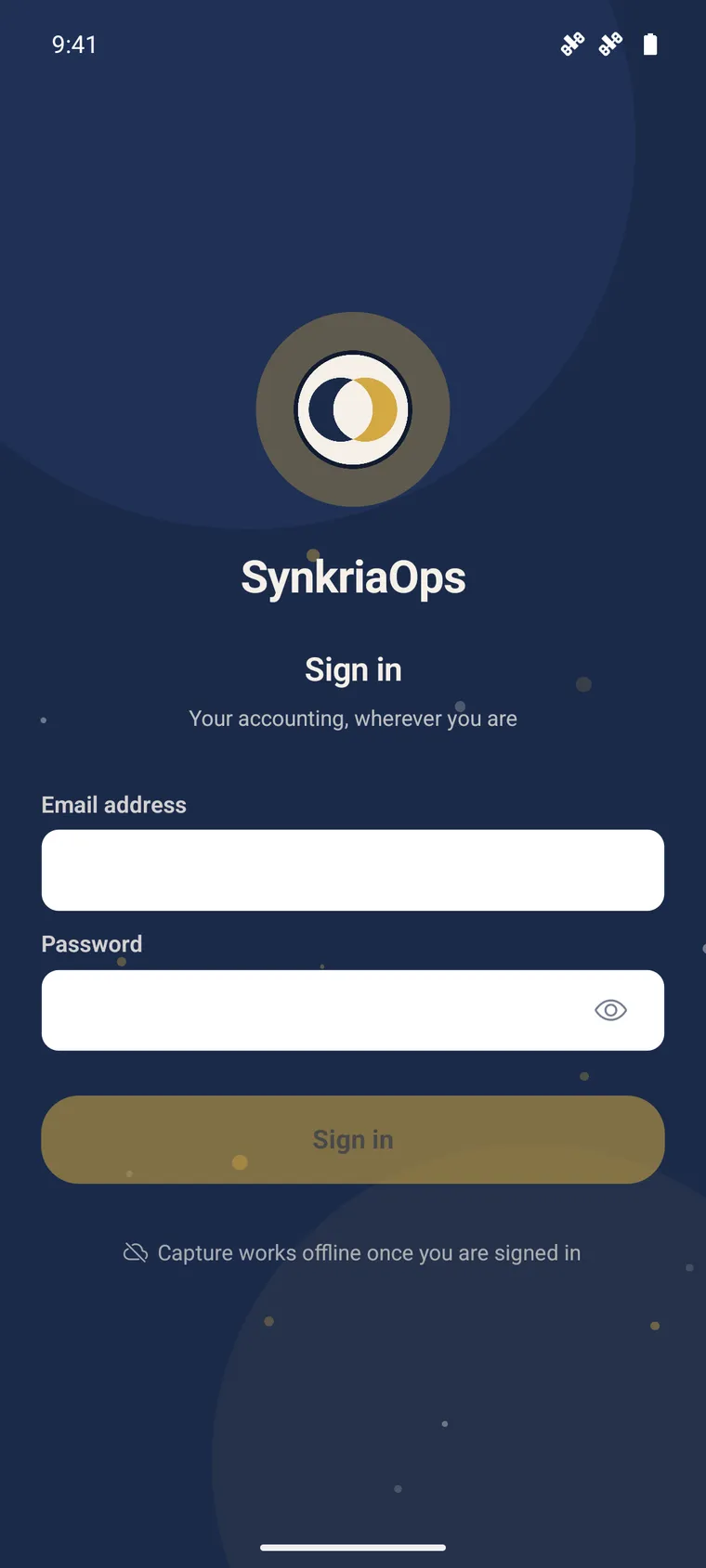
Open the app and enter your SynkriaOps email and password (the same as on the web).
-
If two-factor authentication (2FA) is enabled on your account, enter the requested code.
-
You land on the Activity screen, the app’s dashboard.
Choose your company file (multi-tenant)
Section titled “Choose your company file (multi-tenant)”If your account has access to several company files (an accounting firm), the active file is shown at the top of the capture screen. To switch:
-
Open the Settings tab.
-
Select the desired file from the list.
-
The cache is purged immediately: no data from one file leaks into another, even on a shared phone.
Enable the biometric lock
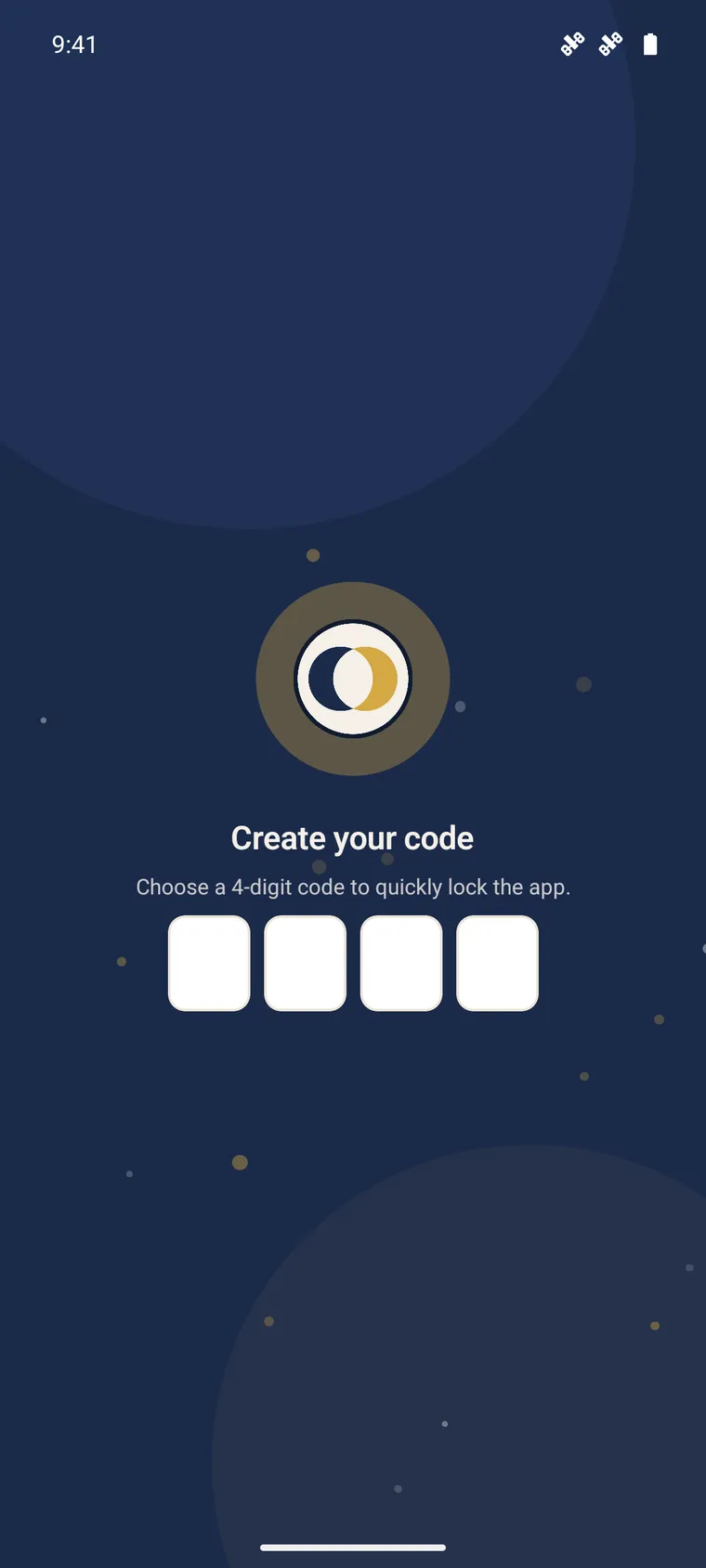
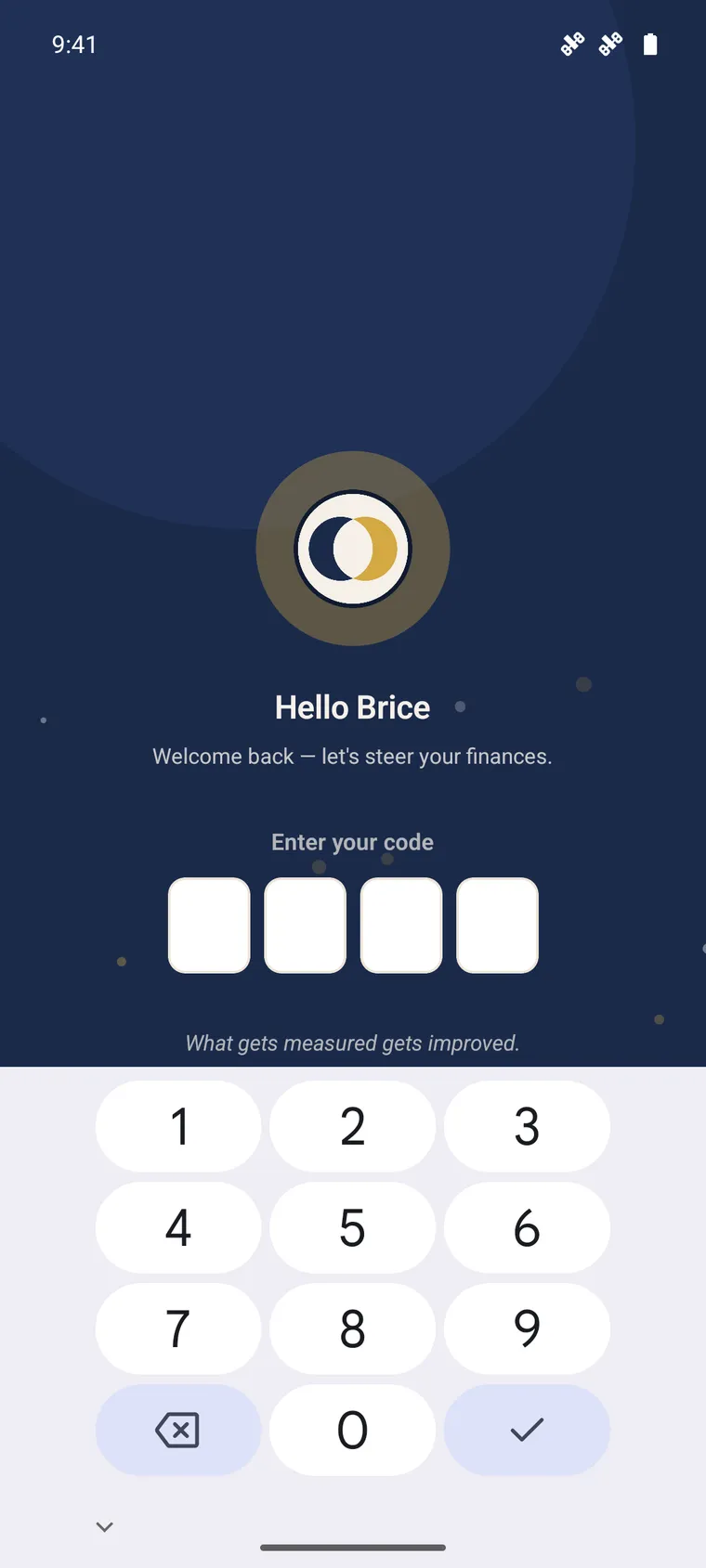
Section titled “Enable the biometric lock”To protect the display of your financial data, enable unlocking by fingerprint or face recognition:
-
Settings tab → Biometric lock.
-
Turn on the option and confirm with your biometrics.
Push notifications
Section titled “Push notifications”Enable push notifications (Settings) to be alerted to important events. Tapping a notification opens the relevant screen directly (for example the capture queue). Like biometrics, notifications depend on the device and on your permission.
Further reading
Section titled “Further reading”- Field capture — your first receipt as a photo
- Offline mode — how the app works without a network
- Banking & reconciliation — handle your transactions from mobile