Viewing the general ledger: views, filters, matching and export
The general ledger is the reference register of your accounting: every posted entry, account by account, with the balance after each movement. All statements (trial balance, balance sheet, income statement, notes) come from it. Reading it fast means being able to justify any figure.
Open the general ledger
Section titled “Open the general ledger”In the menu: Accounting → General ledger. The period is chosen with the period selector at the top of the screen: a whole fiscal year, a month, a custom range or a shortcut (current month, previous month, last 30 days…). The general ledger, the trial balance and the statements share the same period.
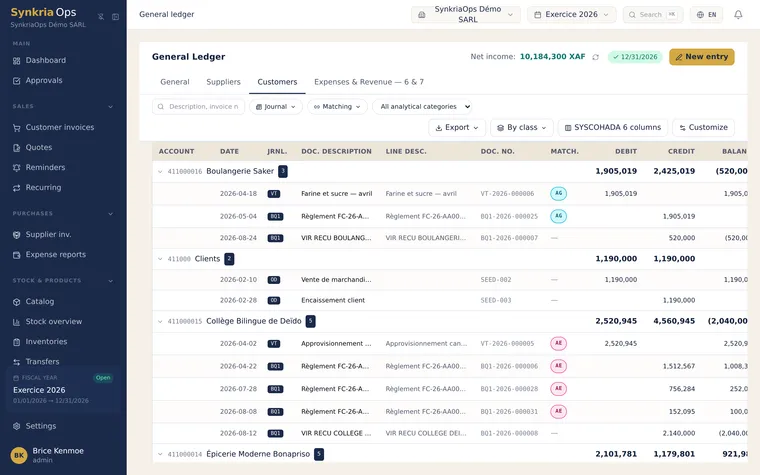
Which view for which question
Section titled “Which view for which question”The general ledger reads in several ways. Each combination answers a precise question.
| Your question | Tab | Layout | Why |
|---|---|---|---|
| ”Are my accounts consistent, class by class?” | General | By class | The SYSCOHADA reading: class, sub-class, account, entries, with class totals and the period’s result. |
| ”Which account moves most? Where is that odd balance?” | General | By account | Accounts listed flat with their balance: an abnormal balance stands out. |
| ”What was entered this week, in what order?” | General | List | One line per entry, like a journal; each block says whether it balances. |
| ”What does each customer owe me?” | Customers | By account | Each customer account with its detail and matching. |
| ”What do I owe each supplier?” | Suppliers | By account | The same for suppliers. |
| ”Where does my money go, where does my margin come from?” | Expenses & Revenue | By class | Classes 6 and 7 only, to analyse activity. |
| ”What are the opening, movements and closing of each account?” | Any | 8 columns | Opening balances, period movements and closing balances, in debit and credit, like a detailed trial balance. |
The display mode selector offers the three layouts; on the keyboard, type G then 1 (by class), 2 (by account) or 3 (list). The 8 columns button switches the amount layout; Standard view returns to debit, credit and balance.
Filter to find fast
Section titled “Filter to find fast”| Filter | What it does | Example |
|---|---|---|
| Search | Searches descriptions and invoice numbers | FC-26-AA00042, rent |
| Journal | Keeps only one journal’s entries | OD to review adjustments |
| Matching status | Matched, Unmatched, with a matching code, or awaiting reconciliation | Unmatched on the Customers tab: invoices still due |
| Analytical category | Keeps only one category’s entries | The full cost of a project |
| Account | Opened from the trial balance, a contact profile or a financial statement, the ledger arrives filtered on the account | Banner “Entries of account 411001”, with Remove account filter |
Clear filters restores the full view.
Read a line
Section titled “Read a line”| Column | Meaning |
|---|---|
| Date | Date of the voucher (not the entry date) |
| Journal | The voucher’s journal: AC, VT, BQ, CA, OD, AN, BQ2… |
| Voucher no. | Voucher number, in the format VT-2026-000018 |
| Description | Voucher description and, where needed, line description |
| Matching | Matching code; “Partial” when an amount remains to match |
| Debit, Credit | Line amounts |
| Balance | Running account balance after this line |
Two clicks link to the rest of your accounting:
- clicking an entry opens the source voucher in a panel, without leaving the ledger;
- clicking an account number opens the account profile: balance, SYSCOHADA definition, normal direction, and links to the trial balance and ledger of that account.
An account whose balance is in the wrong direction (a bank in credit, a customer in credit) is marked Abnormal Balance.
Match from the list
Section titled “Match from the list”In List layout, tick lines on the same third-party account: a bar shows the number of lines, total debit, total credit and the difference. The Reconcile these lines button is only active if:
- all lines are on the same third-party account;
- there is at least one debit line and one credit line;
- debit and credit balance;
- no line is already fully matched.
Matching is detailed in Matching third-party accounts.
Warnings to know
Section titled “Warnings to know”| Banner | What it means | What to do |
|---|---|---|
| Opening balances not generated | Opening balances are provisional, computed from previous fiscal years | Generate opening balances: see Opening balances explained |
| Stale opening balances | The previous fiscal year was reopened and may have changed | Close the previous fiscal year again |
| Unbalanced (on a block, in list) | Total debit differs from total credit for this block | Check it: possible anomaly |
| Partial (on a block, in list) | Part of the block is on another page | Nothing wrong; enlarge the page to see the whole block |
Export
Section titled “Export”The export button offers four layouts:
| Layout | Content |
|---|---|
| Standard | Debit, credit and running balance |
| Debit / credit balance | Debit, credit, debit balance and credit balance; opening balance at the top of each account, closing balance in the total |
| 8 columns | Matching code, then opening balance, movements and closing balance, each in debit and credit |
| As on screen | Exactly the columns displayed |
Customise columns opens an editor: you choose the information (date, journal, voucher no., invoice no., due date, account, descriptions, matching, amount left to match, VAT rate, analytical codes and categories, opening balances, movements, balance), its order and the amount format (debit and credit, one signed column, or amount and direction). A preview shows the document before export and tells you whether it fits on a PDF page or whether Excel is better. You can save the choice as a template.
The export always follows the screen’s period, tab and filters. The file arrives in the export centre.
Three concrete cases
Section titled “Three concrete cases”Justify a customer’s balance
Section titled “Justify a customer’s balance”Customers tab, By account layout, Unmatched filter. Only unpaid invoices and unapplied payments remain: their sum is the balance. To send it to the customer, use the statement of account from the contact profile instead.
Reconcile the bank
Section titled “Reconcile the bank”Open the bank account (521…) for the month. Total debits minus total credits must match the statement’s movements. A difference signals a missing transaction or a wrong amount: see Bank reconciliation.
Explain a balance sheet line
Section titled “Explain a balance sheet line”From the balance sheet or the income statement, click a line: the detail panel lists the accounts that make it up and their entries, and View in the General Ledger opens the ledger filtered on the account. The full approach is in Trace a financial statement back to the voucher.
Fix common errors
Section titled “Fix common errors”| Symptom | Likely cause | Solution |
|---|---|---|
| The ledger is empty | No posted entry for the period or these filters | Check the period and click Clear filters |
| The balance differs from the trial balance | Different period between the two screens | The period selector is shared: check it has not changed |
| An entry is missing | The voucher is a draft | Post the voucher |
| Net income is not shown | You are on a tab other than General | Go back to the General tab |