Banking & Treasury
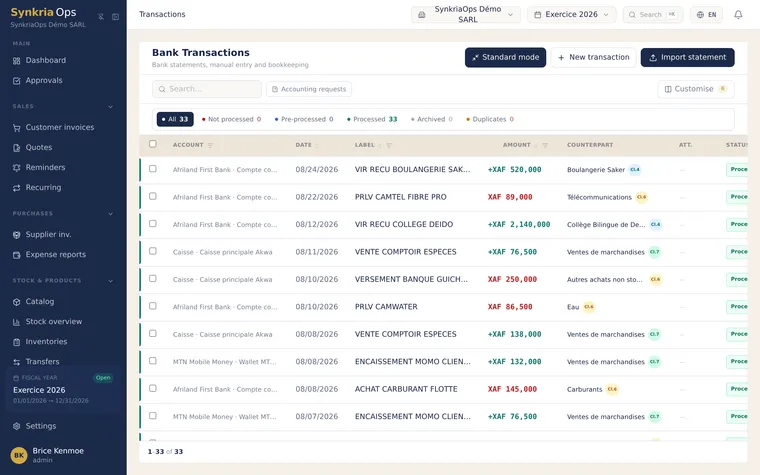
This section covers the whole treasury workflow: declaring your accounts, bringing in transactions (by hand or by importing a statement), posting them, then checking that your book balances match the bank’s.
Understanding the treasury workflow
Section titled “Understanding the treasury workflow”In SynkriaOps, a bank account, a cash register and a Mobile Money wallet are
handled the same way. Each has its SYSCOHADA class 5 account (521, 571,
552) and its own journal, created automatically when the account is
declared.
The workflow has four steps:
- Declare the account once and for all.
- Bring in the transactions: import the bank or wallet statement, or enter an isolated operation by hand.
- Process each transaction: assign a counterpart account or reconcile it with an invoice. This is when the accounting entry is recorded.
- Perform the bank reconciliation to confirm that the book balance matches the statement.
Before you start
Section titled “Before you start”- At least one account declared in Settings → Bank accounts (see Setting up a bank account).
- An open fiscal year for the period of your operations.
- The Administrator or Accountant role to enter and import transactions.
Available guides
Section titled “Available guides” Setting up a bank account Declare a bank, a cash register or a Mobile Money wallet: class 5 account, pending account and journal created automatically.
Creating a manual transaction Enter an operation missing from your statements (cash, fees, one-off payment), post it or reconcile it with an invoice.
Importing a bank statement Import an OFX, MT940, CSV, Excel or PDF statement and check for duplicates before posting.
Import a Mobile Money statement Import the PDF or Excel statement of an Orange Money Cameroon wallet, with direction detection and fee separation.
Bank reconciliation Compare the book balance with the statement and explain the differences.
Cash flow forecast See your future flows based on due dates, invoices and history.
Payment schedule Follow upcoming customer and supplier due dates.
Mobile Money payments Receive payments from your customers through the Orange Money or MTN MoMo API.
Categorizing transactions Sort your bank, cash and Mobile Money transactions into analytical categories: the To categorize queue, suggestions, percentage allocation and automatic allocation rules.
Posting a transaction Post a bank, cash or Mobile Money transaction to the books: assign a counterpart account, reconcile a customer or supplier invoice.
Supported statement formats
Section titled “Supported statement formats”| Format | Use | Column mapping |
|---|---|---|
| OFX / QFX | Export offered by most banks | None |
| MT940 | SWIFT interbank format | None |
| CSV, Excel | Any bank | Detected, to be checked |
| Native or scanned PDF | Bank statement without a structured export | Read by OCR, lines to review |
| Orange Money Cameroon statement (PDF or Excel) | Orange Money wallet | None: dedicated reader |
Where to start?
Section titled “Where to start?”If you are setting up treasury for the first time, start by setting up a bank account, then import your first statement or enter a transaction.