Importing a bank statement
By the end of this page, you will know how to import your bank statement into SynkriaOps and process the transactions it creates. Each imported line becomes a transaction with the Not processed status, attached to the account you chose. No accounting entry is recorded until you post it.
Choosing the statement format
Section titled “Choosing the statement format”SynkriaOps accepts bank statements in these formats:
| Format | Accepted extensions | Column mapping |
|---|---|---|
| OFX / QFX | .ofx, .qfx | None: direct import |
| MT940 (SWIFT interbank format) | .mt940, .sta, .940, .txt | None: direct import |
| CSV | .csv | Columns detected, to be checked |
| Excel | .xls, .xlsx | Columns detected, to be checked |
| PDF (native or scanned statement) | .pdf | Read by OCR, lines to review before import |
Maximum size: 20 MB per file, 15 MB for a PDF.
Prerequisites
Section titled “Prerequisites”Before importing, check that:
- The account is declared and active in Settings → Bank accounts (see Setting up a bank account).
- You have the Administrator or Accountant role.
- An open fiscal year covers the statement period: without it, the transactions are imported but cannot be posted.
Download the statement from your bank’s online space, in OFX or MT940 format if offered, otherwise in CSV or Excel. Do not open and re-save the file in a spreadsheet before importing it: dates and amounts may be altered.
Importing the statement into SynkriaOps
Section titled “Importing the statement into SynkriaOps”Two entry points open the same wizard:
- Cash & banking → Transactions, Import statement button (the New bank import panel opens);
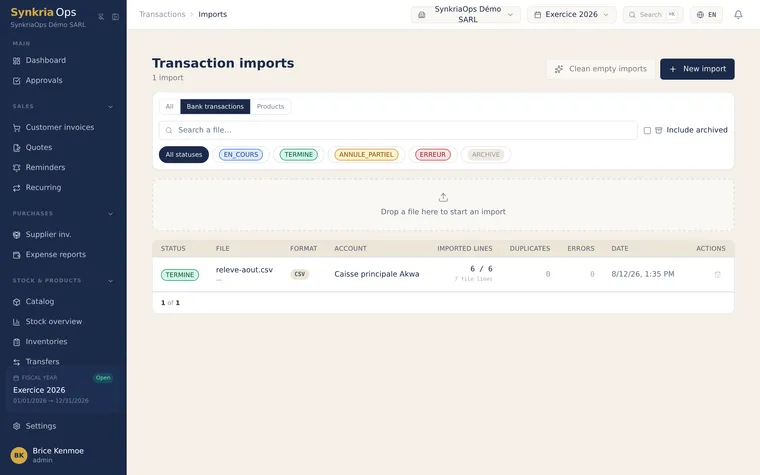
- Documents → Imports, New import button. This page also lists your import history.
-
Statement type: choose Standard bank statement, then Continue. For a Mobile Money wallet, see Import a Mobile Money statement.
-
Source file: in Target account, select the account. Drag the file onto the drop zone or click it to choose the file, then click Next: Mapping configuration.
-
If this exact file has already been imported on this account, the File already imported window shows the date and number of transactions of the first import. Click Cancel, unless you have a specific reason to go on (Continue anyway).
-
Mapping (CSV and Excel only; the step is skipped for OFX and MT940). Check:
- Date format, for example
DD/MM/YYYY; - Amount convention: 1 column (Signed amount +/-), 2 columns (Debit and Credit separated) or 2 columns (Absolute amount + D/C indicator);
- for each column of the file, the Associate with field (operation date, label, debit, credit, balance…).
Click Next: Analysis.
- Date format, for example
-
Analysis: the screen shows the number of Valid lines, Suspected duplicates and Format errors, then a Preview (first 10 lines). Check that money going out is in the Debit (outflow) column and money coming in is in Credit (inflow); otherwise, go back to the mapping. Lines with errors will be ignored.
-
Click Confirm import (N lines). The import continues in the background; you can leave the page.
-
When it finishes, the Import completed successfully! screen shows the number of imported lines and suspected duplicates. Click View transactions or, if there are duplicates, Manage duplicates.
Checking that the statement is complete
Section titled “Checking that the statement is complete”Each imported file becomes a statement: the period, the opening balance, the movements and the closing balance printed by the bank. SynkriaOps checks that opening balance + movements = closing balance. Open the import in Documents → Imports, Bank statement section:
| What you see | What it means |
|---|---|
| Complete statement | No line is missing. |
| Difference of … | A line is missing, duplicated, or the file is truncated. The amount shown is what is missing. |
| Balances to complete | The file carries no balances: click Enter balances and copy them from the statement. |
Where the balances come from:
- MT940 and PDF: read from the file (opening and closing balance);
- OFX: only the closing balance is in the file; the opening balance takes the previous statement’s closing balance for the same account when no transaction falls in between, otherwise it has to be entered;
- CSV, Excel, Mobile Money: derived from the “balance” column when it exists and you mapped it at the mapping step.
A warning also appears when the opening balance does not continue the previous statement’s closing balance (a statement is missing in between), or when two statements of the same account overlap.
Processing imported transactions
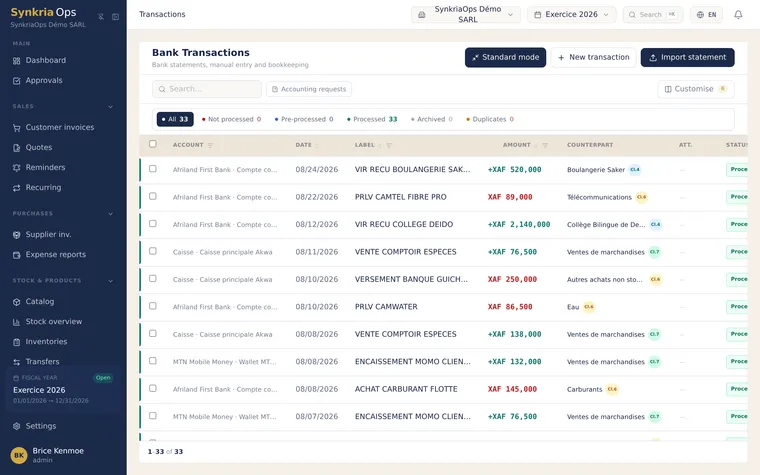
Section titled “Processing imported transactions”An imported transaction is processed like a manually entered one: you assign a counterpart account or reconcile it with an invoice.
-
Go to Cash & banking → Transactions and open the Not processed tab. The filter on the Account column narrows the list to one account.
-
Click a transaction to open its detail panel.
-
Two options:
- Bookkeeping section: choose the counterpart account (for example
411xxxfor a customer,401xxxfor a supplier,585for a transfer between your own accounts), then click Assign counterpart: generate BQ entry; - Reconciliation tab: link the transaction to the invoice it settles (Reconcile on a suggestion, or search the accounting documents, then Link).
- Bookkeeping section: choose the counterpart account (for example
-
The transaction moves to Processed: the entry is recorded in the account’s journal (
BQ1,CA1,MM1…). -
Once all transactions are processed, perform the bank reconciliation to confirm that the book balance matches the statement.
The entry produced, partial reconciliation and cancelling a posting are explained in Posting a transaction.
Handling duplicates on import
Section titled “Handling duplicates on import”SynkriaOps compares each statement line with the transactions already on the same account, over a 7-day window around the statement dates. Manually entered transactions are included in the comparison. Each line receives a score from 0 to 100:
| What SynkriaOps finds | Effect on the score |
|---|---|
| The same file has already been imported on this account | 95 |
| Same date, same amount, identical label | 90 |
| Same date, same amount, at least 70% of words in common in the label | 85 |
| Date within 3 days, same amount (or a gap of 0.5% at most), similar label | 65 to 80 |
| Same balance after the transaction, when the file provides it | +10 |
| Different balance after the transaction | −40 |
From 60 upwards, the line is a suspected duplicate. It is imported anyway, with the Duplicate badge, and listed in the Duplicates tab of the Bank Transactions page, by level: Suspicious (60 to 79), Probable (80 to 94), Near-certain (95 to 100).
For each duplicate, compare the imported transaction with the original, then choose Mark as legitimate (two distinct real transactions) or Delete. A transaction that is already processed cannot be deleted from this view.
Fixing common errors
Section titled “Fixing common errors”| Message or situation | Cause | Solution |
|---|---|---|
| The drop zone does not accept the file | Extension not accepted or file larger than 20 MB | Export the statement again in a format from the table above, or split it by month |
| ”This PDF exceeds 15 MB. Lower the scan quality or split into several files.” | PDF too large | Scan at a lower quality or split the statement |
| ”This PDF is password-protected. Remove protection before import.” | Protected PDF | Remove the password, then restart the import |
| File already imported | The same file has already been imported on this account | Cancel, unless you have a specific reason to import it again |
| Low-confidence format detection | Ambiguous date format (DD/MM or MM/DD, two-digit year) | Choose the exact format in Date format before continuing |
| ”Warning: N lines with errors will be ignored” | Unreadable date or amount on these lines | Correct the mapping, or enter these lines by hand after the import |
| ”Session expired (over 30 minutes). Please restart the import.” | The wizard stayed open too long | Restart the import with the file |
| ”Date … does not belong to any active fiscal year” (when posting) | No open fiscal year covers the transaction date | Create or open the fiscal year in Settings → Fiscal years |