Signing in to SynkriaOps
SynkriaOps runs in the browser, with nothing to install. By the end of this page, you will know how to sign in, how long a session stays open and what the codes requested at sign-in mean.
Signing in
Section titled “Signing in”-
Open app.synkriaops.com.
-
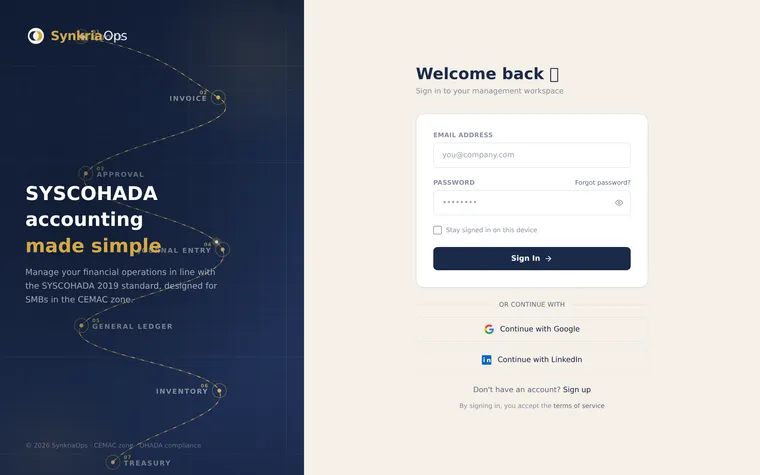
Enter your Email address and Password, or click Continue with Google or Continue with LinkedIn if your account is linked to one of them.
-
Tick Stay signed in for 30 days on this device only on a personal computer.
-
Click Sign In.
-
If a code is requested, enter it (see below).
You land on the dashboard of the company you opened last. To switch to another company, use the company selector at the top of the screen: see Switch the active company file.
How long do you stay signed in?
Section titled “How long do you stay signed in?”| Option at sign-in | Session length |
|---|---|
| Stay signed in for 30 days on this device ticked | 30 days after signing in, whatever your activity |
| Box not ticked | 12 hours at most, and closed after 2 hours without activity |
A session also closes when:
- you change or reset your password (all your sessions close);
- you close it from another device;
- you exceed 2 sessions on computers or 2 on phones: the least recently used one closes;
- the administrator disables your account.
A message on the sign-in page tells you why. Details are in Managing active sessions.
Codes requested at sign-in
Section titled “Codes requested at sign-in”Two-factor code. If you have turned on two-factor authentication, the Two-factor verification screen asks for the 6-digit code from your authenticator app, or a backup code. Tick Don’t ask for a code on this device again so that it is no longer requested for 30 days, as long as you use the device at least every 3 days. See Two-factor authentication.
Code sent by email. When a sign-in looks unusual (new device on a new network, new country, recent failures), SynkriaOps sends a 6-digit code to your account’s email address: “This sign-in looks unusual to us: we are checking it is really you.” Enter that code. Resend the code sends a new one; the previous one no longer works.
The code step stays valid for 5 minutes. Beyond that, start signing in again.
Signing out
Section titled “Signing out”Click your avatar at the top right, then Sign out. On a shared computer, check that reopening the address takes you back to the sign-in page.
Common error messages
Section titled “Common error messages”| Message | Cause | Solution |
|---|---|---|
| ”Invalid credentials. Please try again.” | Wrong address or password | The password is case-sensitive. Otherwise, reset it |
| ”Account temporarily locked (N min remaining)“ | 5 failed attempts | Wait until the 15-minute delay ends, or reset the password |
| ”Please verify your email address before signing in.” | Address not yet verified after sign-up | Click Resend verification link and open the link you receive |
| ”Invalid or expired code” | Wrong code or step older than 5 minutes | Enter the code currently shown in the app, or start signing in again |
| ”Too many attempts. Wait a minute before trying again.” | Too many wrong codes | Wait one minute |
| ”This account has been disabled. Contact your company administrator.” | The administrator disabled your access | Contact the company administrator |